Posts

Showing posts with the label Silverlight

WP7Dev Tip 1– Optimizing the app by reusing already created visuals

Developing a good application in the phone need not be accompanied with so much of hacking around or doing lot of non-conventional tricks. Most of the time those tricks make us deviate from the regular ways of development, make the code ugly and unmaintainable.  If we can get a sense of the pain-points and limitations of the platform early, then find a way around it and separate those concerns out of your business logic so as to proceed with a smooth development. I am explaining a pretty basic yet useful idea of how to reuse the complex visuals you have already created in previous pages of the application at runtime. Please note that this may not be applicable to small applications involving two or three pages of total navigation. Problem : Imagine you have an application which needs to navigate to the same view over and over again. For example the Movie details page of IMDb or Netflix app, or profile page of Facebook or Twitter, those pages get called many times in the life span...

UniformGrid for Silverlight

Image
Technorati Tags: Silverlight CustomPanel XAML UniformGrid WPF My recent Silverlight project had a need to distribute the items in rows and columns. I had to dynamically calculate the number of columns and rows it needed based on some logic. So it was clear that I need UniformGrid as in WPF so that I can bind my ViewModel properties to Rows and Columns properties of the Panel. But it was a bit surprising to me that there isn’t a Silverlight UniformGrid either in Silverlight SDK or in Silverlight ToolKit. So here is one I ported from WPF. Check out the Silverlight 3.0 demo below. You can also download the sample project

A Simple Accordion banner using ListBox

Image
This sample is to show how easily we can create an Image-accordion entirely in Expression Blend. This is utilizing the ListBox’s Selected and UnSelected VisualStates. Place a ListBox and override its ItemContainerStyle then adjust the width on the Selected and UnSelected visual states. When we override the ItemsPanel we can make it orientation to Horizontal on the StackPanel. Pretty easy and there is no C# needed. Paste the below XAML in your user control <UserControl.Resources> <ItemsPanelTemplate x:Key="ItemsPanelTemplate1"> <StackPanel Orientation="Horizontal"/> </ItemsPanelTemplate> <Style x:Key="ListBoxItemStyle1" TargetType="ListBoxItem"> <Setter Property="Template"> <Setter.Value> <ControlTemplate TargetType="ListBoxItem"> ...

Button Style - Silverlight

Image
Really surprised to see from the google analytics that one of my old post regarding WPF control template still has many viewers . So I just thought of creating a Silverlight version of the same. All the buttons are from the same style with different Button.Background, the elliptical one has less height and more width on it. If you want to check out the XAML, please download from here

Silverlight 3 Multi-Touch with Windows 7 and HP Touch Smart.

Image
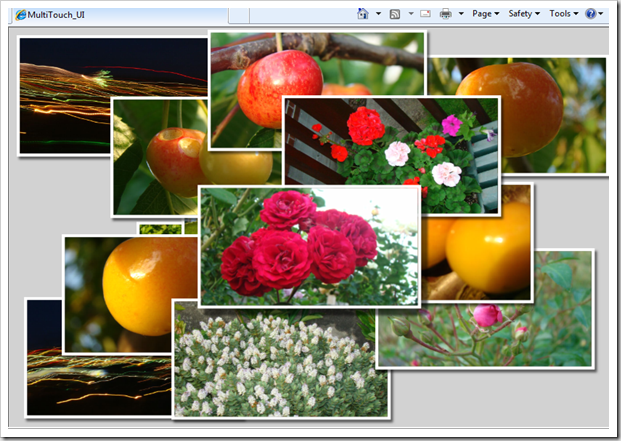
Inspired by the blog Silverlight 3 Multi-touch: The Basics by Tim Heuer , I thought of experimenting with it and creating a small sample. The logic is pretty simple, I have used TranslateTranform and ScaleTranform to do the movement and scaling respectively. When the TouchAction is Move we can distinguish whether it is a single touch or multi touch from the TouchPointCollection count. When it is a double touch you can calculate the change of distance between the two touch points and transform that as ScaleTransform of the Visual. Please watch the video, I shot on my office HP Touch smart machine. Have you got a multi-touch monitor?, then run the application here and feel the Silverlight touch. You can set your browser in Full-Screen mode to get a good experience. Please note that the current Silverlight version doesn't accept Touch inputs while running in Silverlight full screen mode(ie, App.Current.Host.Content.IsFullScreen =true). You can read more on Silverlight ...

Slider Preview as Expression Blend 3 Behavior

Behaviors is one of the new features Expression blend 3 has introduced to make interactivity easy. Behavior allows us to wrap the interaction logic as a very discrete unit and attach to any UI elements. My previous blog post about Attaching preview behavior to a Slider control , is a good scenario to make as a Behavior. I have used Attached Dependency property as a technique to make it happen in the earlier post, though the concept is almost same but Blend Behavior gives a neat and clean abstraction. It also allows a Blend user to just drag-drop to any Slider control. So this is a great functionality which helps boost the re-usability in a cool way. Problem : Create a behavior to display the value of a Slider control when hover over. First step is to make a class which derived from Behavior class. public class PreviewSliderBehaviour : Behavior<Slider> Here I am explicitly giving Slider class as my targeted UI Element type since this behavior is meaningless to other elements. ...

An easy way to update all the UI Property Bindings of an Instance at once! – Silverlight and WPF

Imagine that you have a lot of properties in a class and you are very sure that all of those properties are getting updated at the same point of time. What generally we do in the ViewModel scenario is that we create Property setters for all these and raise PropertyChanged event so as to get the data reflected in the UI layer bindings. But that is a real resource waste when you really know the time of all your property updates. The solution is really easy as per the MSDN documentation for PropertyChanged Event in the remarks section it says “ The PropertyChanged event can indicate all properties on the object have changed by using either a null reference (Nothing in Visual Basic) or String.Empty as the property name in the PropertyChangedEventArgs .” It seems that this is a great saver in terms of code writing and execution, since we need to raise only one PropertyChanged Event per class just after the property updation. Think about a Stock Trading scenario as an example to this, yo...

3D Flipper Control – Using Silverlight 3.0 Plane Projection

Image
Silverlight 3.0 has a coolest feature called PlaneProjection -a perspective transform which projects any UIElement on to a 3D plane. To create a plane projection you just need to set an attached property called ‘Projection’ on the UI Element. You can see relevant set of properties to rotate, center or offset. If you are using Expression blend 3 Beta , you can set these properties using the new Projection editor under Transform category of the property editor. I am going to create a 3D flipper control using this plane projection feature. I guess 3D flipping is the most popular and simplest 3D UX pattern out there. In a nut shell what we need is a custom Silverlight control which is able to take a ‘Front’ and ‘Back’ content elements. And the control should have the ability to flip both the contents in a 3D plane. For example if I have two images to flip, then my XAML should be as follows. So I need to define two dependency properties of type UIElement called FrontContent a...

Different ways to access XML data in Silverlight Application

Image
One of the most common requirement in the Silverlight development is to load XML data in to the application. I am going to describe a few different options that we can choose based on the situations. I am using LINQ for the XML parsing in the examples. Taking a sample XML file names Sample.xml with the following content < Employees > < Employee Name ="John" /> < Employee Name ="Mark" /> < Employee Name ="David" /> </ Employees > 1. Load XML file directly from the Web Server hosted Silverlight XAP You can host the XML file at your web server itself and Silverlight application can load it on demand. To simulate this in Visual Studio you need to create a Test Website for your Silverlight application and put xml file into the ClientBin folder. Now we can write few lines of code to read the XML. WebClient will download the file asynchronously void Page_Loaded( object sender, RoutedEventArgs e) { WebClient xmlClient = ...

Lilac Chaser - Optical illusion using Silverlight

Image
"When one stares at the center for about 20 seconds or so, one first sees a gap running around the circle of lilac disks, then a green disk running around the circle of lilac disks, then a green disk running around on the grey background, the lilac disks having disappeared or having been erased by the green disk. This is due to an interesting effect in which the colors of the lilac disks are inverted in the optical illusion to a green color" This optical illusion is called Lilac chaser  . Just thought of creating a silverlight version of this illusion for fun. I have used a radial panel( from my old blog ) to layout the ellipses radially, and implemented a a timer to change the visibility in a sequential way. This kind of effects can be a good candidate for Splash sreen for silverlight applications :) Full source can be found here 

Mix 10K Coding Challenge - Few Tips I have used to limit the code size

Image
While developing for the  MIX 10K coding challenge , the major challenge to face is to limit the code in 10K size. So I had to question each and every line of code that would it be possible to write this even with fewer bytes.  Check out my application at  http://2009.visitmix.com/MIXtify/TenKDisplay.aspx?SubmissionID=0044  Make sure to run the application in fullscreen mode.  Here I am compiling a list of tips and features I used to reduce the code size.  1.       Automatic Properties - Used this .NET feature to create the Tweet class which represents an RSS feed item from the search result    public class Tweet {   public string Guid { get;set; }   public string Title { get;set; }   public string Author { get;set;     … …. 2.       Object Initializers new Tweet {Title = element.Element("title").Value, Author = element.Element("author").Value, Guid = element.Element("guid").Value}}; 3.       LINQ to XML - I have used this to read the XML stream from...

Mix 10K smart coding challenge

Image
The Mix conference 2009 has organized a coding challenge on Silverlight/WPF with a restriction of using only 10Kb of source code. You can see the gallery of submissions at http://2009.visitmix.com/MIXtify/TenKGallery.aspx . Please visit and cast your vote for the entries you like, You can see my entry here. My application allows you to search the twitter feeds over the internet using Twitter Search APIs(basically same as what you can see at http://search.twitter.com/) What I am trying to acheive here with silverlight is just another way to visualize the search data along the time line travelling towards the negative Z-space . One more interesting feature I wanted to add to this in the future version would be to give the ability to navigate through the Z-space with mouse scroll to see the older results. This same kind of UX(user experience) can be used to view any sort of time based feeds like blog feeds or search results. Architecturally the application is utilizing the following maj...

Paginated ObservableCollection

Image
ObservableCollection class makes the collection binding very easy in Silverlight or WPF. This special collection is aware of the binding infrastructures and notify them whenever some changes happens to the collection. I have often come across the requirement to have  pagination enabled on collections. When we bind a Collection with many items inside to an ItemsControl, the visual will be created for each and every items. But as we can see that there is no big significance in displaying all the data with a huge vertical scroll bar(or similar mechanism) in it. So pagination is the typical user experience strategy we use in this kind of scenarios. Architecturally we can achieve the pagination mainly in three different ways Making the UI Control or Panel aware of the virtualization, so that the visuals wont create at the time of binding. But as an on demand visual element creation. VirtualizingPanel concept in WPF is actually helps to achieve this idea. For more details about WPF virtuali...

XAML Balloon Comments - Expression Blend Tip

Image
It is often a requirement in Silverlight and WPF that to create Balloon kind of UI for Toolip popups. It can be done in many ways. I am listing out few of the common Balloons you might be interested in.   < Grid             < Grid.RowDefinitions >                 < RowDefinition Height ="*"/>                 < RowDefinition Height ="30"/>             </ Grid.RowDefinitions >             < Rectangle RadiusX ="10" RadiusY ="10" Stroke ="#FF000000"/>             < Path Fill ="#FFFFFFFF" Stretch ="Fill" Stroke ="#FF000000" HorizontalAlignment ="Left" Margin ="30,-1.6,0,0" Width ="20" Grid.Row ="1"                 Data ="M22.166642,154.45381 L29.999666,187.66699 40.791059,154.54395"/>             < TextBlock HorizontalAlignment ="Center" V...

Concave cornered Rectangle - Expression Blend Tip

Image
An expression blend tip to create a Path looks like a concave cornered rectangle.  Put a Grid with 5*5 rows and columns. and add 4 ellipse and a rectangle as in the following XAML. < Grid x : Name ="grid" > < Grid.ColumnDefinitions > < ColumnDefinition Width ="0.1*"/> < ColumnDefinition Width ="0.1*"/> < ColumnDefinition Width ="0.6*"/> < ColumnDefinition Width ="0.1*"/> < ColumnDefinition Width ="0.1*"/> </ Grid.ColumnDefinitions > < Grid.RowDefinitions > < RowDefinition Height ="0.1*"/> < RowDefinition Height ="0.1*"/> < RowDefinition Height ="0.6*"/> < RowDefinition Height ="0.1*"/> < RowDefinition Height ="0.1*"/> </ Grid.RowDefinitions > < Rectangle Fill ="#FF000000" Grid.Column ="1...

Desklighter - A handy tool for Silverlight

Image
As a silverlight developer I have often come across the need to demonstrate my work to others and post it to the Silverlight community. The options we generally use are listed below 1)You can just share the entire source code as a zip. But do you think most of the guys out there have the patience to download-compile-run the code? And sometimes you dont want to share your source code with the public. 2)Upload the application to a webserver But you need to have a webspace and ofcourse the website should support Silverlight. People always need connectivity to the website to run your sample. 3) A new way to share Silverlight Imagine that you could create an EXE out of Silverlight application and send that across your guys and get some comments to improve your work. This makes a silverlight application 'Offline' Sounds like a good idea? So Desklighter is your tool to do that. Deskllighter is a free tool from identitymine Sameer has a great post explaing more details about the deskli...

Silverlight Marquee Control

My previous post describes about making a Custom marquee control in WPF. Here is what I tried the same using Silverlight. Silverlight is getting really mature with its latest releases, it has come pretty close to WPF in most of the scenarios. There is a difference with the way you create the Generic.xaml for writing the default look. You have to manually add the Generic.xaml to the project and set the build action as Resource file. See this blog for a detailed explanation of this. And the XAML code is still the same as what we wrote in WPF. The following code has to be added to the constructor so that whenever the control gets instantiated the default style will be associated with that. public Marquee() { DefaultStyleKey = typeof ( Marquee ); } The rest of the code is pretty much the same as WPF. I have added a Duration dependency property so that end user will be able to change the speed of the animation at run time. And subscribed to the mouse enter and leave so that animation w...

Silverlight DeepZoom + AndreaMosaic

Image
Take a look at the Deepzoom page composed by Rob Burke using AndreaMosaic and Silverlight Deepzoom. This is such a great idea and to me this is going to be the major use of Silverlight Deepzoom technology. I am not sure that how many other software available out there which does photo mosaic. So I just tried to do one by myself. Bellow are the steps I followed 1) Installed AndreaMosaic and just follow the steps to create a photo mosaic file. You have to play little bit around the tool to undertsand what exactly is happening. 2)Open the DeepZoom composer (Can be downloaded here ) and arrange your photo mosaics in the order 3)Export the Deepzoom project to silverlight project 4)Publish that to Silverlight Streaming service Original Photo and the bellow deepzoom Silverlight(multiscale image) has around 1000 images in it. Check this out by drag and scroll your mouse. Or check out the Streaming version here

A Simple Radial Panel for WPF and SilverLight

Image
Geometry was one of the coolest topics in school for me. Probably because it uses a lot of figures to convey the concepts. Here I am trying to explain how we can leverage the Layout system in WPF and Silver light by taking an example of creating a Radial Panel. A RadialPanel lays out its children in a circular fasion. So before going in to the technical details, let us see how this problem get solved algorithmically.If you are asked to arrange a bunch of items in a circular path, what all things would you consider?. 1) How much space do I have? – Say X * Y rectangular area is the available size. 2) I will draw an approximate Circle (Or ellipse) inside the X*Y space. Assuming that the Radii are ‘Rx and Ry' 3) How many items are there to arrange? Say N – number 4) I know that 360 degrees are the total angular space for a circle. So angular distance between each item will be 360/N degrees. 6) I can calculate the coordinate point to which an item should be placed. That is by doing the ...