Posts

WP7Dev Tip 2– Few things to remember on Image handling

Image
Image handling is an important factor deciding the performance as well as usability of any application. When it comes to Windows Phone 7 it is even more important because of the limited network conditions and the low processing power as compared to PC. Here is the video I am talking about the same things with a Bing Search sample in Silverlight TV show I am just listing down few common tips which can greatly improve the performance and effectiveness of your application. And also please note that some of the points might not be applicable for certain applications especially for very small apps. Use JPEG instead of PNG whenever possible – Jpeg decodes faster than PNG image.  If there is no transparency needed, use Jpeg with a compromised quality Optimize your static Image quality :  Medium quality compressed Jpeg requires less memory to render as compared to a full quality Jpeg. So there is a big savings in memory and performance, if we can compromise on the Jpeg qua...

WP7Dev Tip 1– Optimizing the app by reusing already created visuals

Developing a good application in the phone need not be accompanied with so much of hacking around or doing lot of non-conventional tricks. Most of the time those tricks make us deviate from the regular ways of development, make the code ugly and unmaintainable.  If we can get a sense of the pain-points and limitations of the platform early, then find a way around it and separate those concerns out of your business logic so as to proceed with a smooth development. I am explaining a pretty basic yet useful idea of how to reuse the complex visuals you have already created in previous pages of the application at runtime. Please note that this may not be applicable to small applications involving two or three pages of total navigation. Problem : Imagine you have an application which needs to navigate to the same view over and over again. For example the Movie details page of IMDb or Netflix app, or profile page of Facebook or Twitter, those pages get called many times in the life span...

An easy Windows Phone 7 Photo Viewer using Pivot control #WP7 Tip

Image
Technorati Tags: WP7 , Windows Phone 7 , XAML , Pivot   Source Code Here is a small trick using the Pivot control for a Photo viewing experience. Imagine a Pivot control with out any header and the image as Pivot items. Yes it is that easy :). Since the Pivot supports for the Phone orientation you can enjoy the picture viewing both in Portrait and Landscape. I am giving step by step info if you are totally new to WP7 and XAML styling. And please note that the performance wont be that great if you have many images in the Pivot control. So you may need to do design that around or use some tricks to clean up the memory well. 1) Place a Pivot control and override the Style. What we wanted is to take out all the Header Templates and other extra puddings.         <Style x:Key="emptyPivot" TargetType="controls:Pivot">             <Setter Property="...

UniformGrid for Silverlight

Image
Technorati Tags: Silverlight CustomPanel XAML UniformGrid WPF My recent Silverlight project had a need to distribute the items in rows and columns. I had to dynamically calculate the number of columns and rows it needed based on some logic. So it was clear that I need UniformGrid as in WPF so that I can bind my ViewModel properties to Rows and Columns properties of the Panel. But it was a bit surprising to me that there isn’t a Silverlight UniformGrid either in Silverlight SDK or in Silverlight ToolKit. So here is one I ported from WPF. Check out the Silverlight 3.0 demo below. You can also download the sample project

A Simple Accordion banner using ListBox

Image
This sample is to show how easily we can create an Image-accordion entirely in Expression Blend. This is utilizing the ListBox’s Selected and UnSelected VisualStates. Place a ListBox and override its ItemContainerStyle then adjust the width on the Selected and UnSelected visual states. When we override the ItemsPanel we can make it orientation to Horizontal on the StackPanel. Pretty easy and there is no C# needed. Paste the below XAML in your user control <UserControl.Resources> <ItemsPanelTemplate x:Key="ItemsPanelTemplate1"> <StackPanel Orientation="Horizontal"/> </ItemsPanelTemplate> <Style x:Key="ListBoxItemStyle1" TargetType="ListBoxItem"> <Setter Property="Template"> <Setter.Value> <ControlTemplate TargetType="ListBoxItem"> ...

Button Style - Silverlight

Image
Really surprised to see from the google analytics that one of my old post regarding WPF control template still has many viewers . So I just thought of creating a Silverlight version of the same. All the buttons are from the same style with different Button.Background, the elliptical one has less height and more width on it. If you want to check out the XAML, please download from here

Silverlight 3 Multi-Touch with Windows 7 and HP Touch Smart.

Image
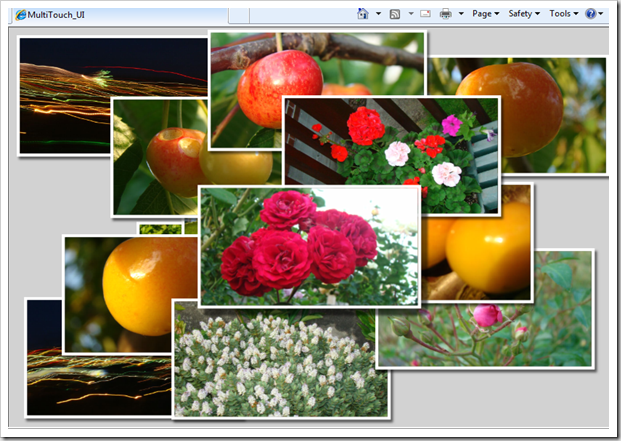
Inspired by the blog Silverlight 3 Multi-touch: The Basics by Tim Heuer , I thought of experimenting with it and creating a small sample. The logic is pretty simple, I have used TranslateTranform and ScaleTranform to do the movement and scaling respectively. When the TouchAction is Move we can distinguish whether it is a single touch or multi touch from the TouchPointCollection count. When it is a double touch you can calculate the change of distance between the two touch points and transform that as ScaleTransform of the Visual. Please watch the video, I shot on my office HP Touch smart machine. Have you got a multi-touch monitor?, then run the application here and feel the Silverlight touch. You can set your browser in Full-Screen mode to get a good experience. Please note that the current Silverlight version doesn't accept Touch inputs while running in Silverlight full screen mode(ie, App.Current.Host.Content.IsFullScreen =true). You can read more on Silverlight ...

Slider Preview as Expression Blend 3 Behavior

Behaviors is one of the new features Expression blend 3 has introduced to make interactivity easy. Behavior allows us to wrap the interaction logic as a very discrete unit and attach to any UI elements. My previous blog post about Attaching preview behavior to a Slider control , is a good scenario to make as a Behavior. I have used Attached Dependency property as a technique to make it happen in the earlier post, though the concept is almost same but Blend Behavior gives a neat and clean abstraction. It also allows a Blend user to just drag-drop to any Slider control. So this is a great functionality which helps boost the re-usability in a cool way. Problem : Create a behavior to display the value of a Slider control when hover over. First step is to make a class which derived from Behavior class. public class PreviewSliderBehaviour : Behavior<Slider> Here I am explicitly giving Slider class as my targeted UI Element type since this behavior is meaningless to other elements. ...

Attaching Preview behavior to a WPF Slider control

Image
Technorati Tags: MediaPlayer Style , Theme , WPF , XAML , ControlTemplate Today I am sharing about a common usage of Slider control for the Timeline scenarios as we can see in many Media players. The above pictures shows timeline/scrubber control of some popular video players( Hulu and Youtube ). We can edit the Slider Style and ControlTemplate to create the same look and feel of the above two scrubbers except the preview value get displayed when we hover over. While figuring out an easy way to build this, I got two different options. The first and the obvious solution is to extend the Slider class to create a new custom control, which will have a new DependancyProperty called PreviewValue to hold the mouse over value. The biggest challenge in this approach is to make this control as much flexible(design and dev friendly) because people may customize the control by giving different Size and Margins to the Track and other parts of the Control template, which will make our assumpti...

An easy way to update all the UI Property Bindings of an Instance at once! – Silverlight and WPF

Imagine that you have a lot of properties in a class and you are very sure that all of those properties are getting updated at the same point of time. What generally we do in the ViewModel scenario is that we create Property setters for all these and raise PropertyChanged event so as to get the data reflected in the UI layer bindings. But that is a real resource waste when you really know the time of all your property updates. The solution is really easy as per the MSDN documentation for PropertyChanged Event in the remarks section it says “ The PropertyChanged event can indicate all properties on the object have changed by using either a null reference (Nothing in Visual Basic) or String.Empty as the property name in the PropertyChangedEventArgs .” It seems that this is a great saver in terms of code writing and execution, since we need to raise only one PropertyChanged Event per class just after the property updation. Think about a Stock Trading scenario as an example to this, yo...

3D Flipper Control – Using Silverlight 3.0 Plane Projection

Image
Silverlight 3.0 has a coolest feature called PlaneProjection -a perspective transform which projects any UIElement on to a 3D plane. To create a plane projection you just need to set an attached property called ‘Projection’ on the UI Element. You can see relevant set of properties to rotate, center or offset. If you are using Expression blend 3 Beta , you can set these properties using the new Projection editor under Transform category of the property editor. I am going to create a 3D flipper control using this plane projection feature. I guess 3D flipping is the most popular and simplest 3D UX pattern out there. In a nut shell what we need is a custom Silverlight control which is able to take a ‘Front’ and ‘Back’ content elements. And the control should have the ability to flip both the contents in a 3D plane. For example if I have two images to flip, then my XAML should be as follows. So I need to define two dependency properties of type UIElement called FrontContent a...

Different ways to access XML data in Silverlight Application

Image
One of the most common requirement in the Silverlight development is to load XML data in to the application. I am going to describe a few different options that we can choose based on the situations. I am using LINQ for the XML parsing in the examples. Taking a sample XML file names Sample.xml with the following content < Employees > < Employee Name ="John" /> < Employee Name ="Mark" /> < Employee Name ="David" /> </ Employees > 1. Load XML file directly from the Web Server hosted Silverlight XAP You can host the XML file at your web server itself and Silverlight application can load it on demand. To simulate this in Visual Studio you need to create a Test Website for your Silverlight application and put xml file into the ClientBin folder. Now we can write few lines of code to read the XML. WebClient will download the file asynchronously void Page_Loaded( object sender, RoutedEventArgs e) { WebClient xmlClient = ...

Sunny Orange - WPF Theme 1

Image
Recently I found out that I have an old blog post about Control Templating a Button, getting a lot of hits. Many out there are looking for free control templates and themes for WPF/Silverlight applications. I am planning to publish few WPF/Silverlight themes in the coming posts. So here I am publishing a simple theme which has almost similar colors to the old blog post. It contains very basic set of controls.  1)Button 2)ToggleButton 3)ComboBox 4)TextBox 5)CheckBox 6)RadioButton 7)ScrollBar 8)ScrollViewer 9)ListBox 10)ProgressBar 11)Slider You can find the source XAML style here -   SunnyOrange_Theme.xaml WPF control theming and templating is very interesting and fun task in the WPF application development, it took only an hour or two for me to create this theme file. Please let me know your valuable feedbacks and suggestions .

A simple Multiselect ComboBox using expression Blend

Image
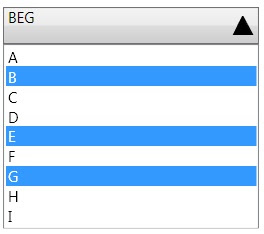
I have often seen requirements to have a combobox with multiple selection enabled. We know thatWPF ListBox control is having two special properties, which enables the multiple selection but the combobox doesnt have those public IList SelectedItems { get; } public SelectionMode SelectionMode { get; set; } There are many ways we can make a multiselect combo box 1)Create a custom control from the scratch and have a Listbox in the dropdown 2)Extend the combobox and add the above properties to it 3)Edit the Combobox control template to add necessary controls and binding. I am going to describe the 3rd idea from the above list, which is a total Expression Blend work, so no need of VS2008 to make a multiselect combobox from a simple combobox. Place a combobox in to the editing area and right click on the control to create an copy of the Control template. Now you can see the Control's tree on the left side of Expression Blend The ItemPresenter inside the scrollviewer is actually the...

Lilac Chaser - Optical illusion using Silverlight

Image
"When one stares at the center for about 20 seconds or so, one first sees a gap running around the circle of lilac disks, then a green disk running around the circle of lilac disks, then a green disk running around on the grey background, the lilac disks having disappeared or having been erased by the green disk. This is due to an interesting effect in which the colors of the lilac disks are inverted in the optical illusion to a green color" This optical illusion is called Lilac chaser  . Just thought of creating a silverlight version of this illusion for fun. I have used a radial panel( from my old blog ) to layout the ellipses radially, and implemented a a timer to change the visibility in a sequential way. This kind of effects can be a good candidate for Splash sreen for silverlight applications :) Full source can be found here 

Mix 10K Coding Challenge - Few Tips I have used to limit the code size

Image
While developing for the  MIX 10K coding challenge , the major challenge to face is to limit the code in 10K size. So I had to question each and every line of code that would it be possible to write this even with fewer bytes.  Check out my application at  http://2009.visitmix.com/MIXtify/TenKDisplay.aspx?SubmissionID=0044  Make sure to run the application in fullscreen mode.  Here I am compiling a list of tips and features I used to reduce the code size.  1.       Automatic Properties - Used this .NET feature to create the Tweet class which represents an RSS feed item from the search result    public class Tweet {   public string Guid { get;set; }   public string Title { get;set; }   public string Author { get;set;     … …. 2.       Object Initializers new Tweet {Title = element.Element("title").Value, Author = element.Element("author").Value, Guid = element.Element("guid").Value}}; 3.       LINQ to XML - I have used this to read the XML stream from...